
A VPS is a remote computer that remains available independently of your personal computer and home internet connection. Running MetaTrader 4 and Deusbot on a Windows VPS allows the EA to continue operating when your own computer is turned off.
This guide helps you choose where Deusbot will run. You can use a compatible VPS you already own, set up the Windows VPS recommended by Deusbot Trading, or continue temporarily on your personal Windows computer while you test the setup.
Why use a VPS?
Deusbot runs inside MetaTrader 4. If the machine running MT4 is turned off, loses its internet connection, enters sleep mode, or closes MT4, the EA can no longer monitor the market or manage trades until the connection is restored.
A VPS works like a Windows computer located in a data center. You access its desktop remotely, install MT4 and Deusbot, and leave them running when you disconnect from the remote desktop session.
Use your personal computer temporarily
If you do not have a VPS yet, you can complete the next guides on your personal Windows computer to install and test MetaTrader 4 and Deusbot.
While Deusbot is running on your computer
- The computer must remain powered on and connected to the internet.
- Windows must not enter sleep mode.
- MetaTrader 4 and the three Deusbot charts must remain open.
Already have a VPS?
You do not need to order another VPS if your current one can reliably run a single MT4 terminal with the three Deusbot charts.
Your existing VPS is suitable when
- It runs a supported 64-bit version of Windows with a graphical desktop.
- You have administrator access and can connect through Remote Desktop Protocol, also called RDP.
- It provides at least 2 virtual CPU cores, 2 GB of RAM, and sufficient free storage for Windows, MT4, and system updates.
- It allows MT4, Expert Advisors, and outbound HTTPS connections to the Deusbot API.
Our recommended VPS
The Windows 2 plan, with 2 CPU cores, 2 GB of RAM, and 40 GB of storage, should be a suitable starting point when the VPS is used only for one MT4 terminal running Deusbot.
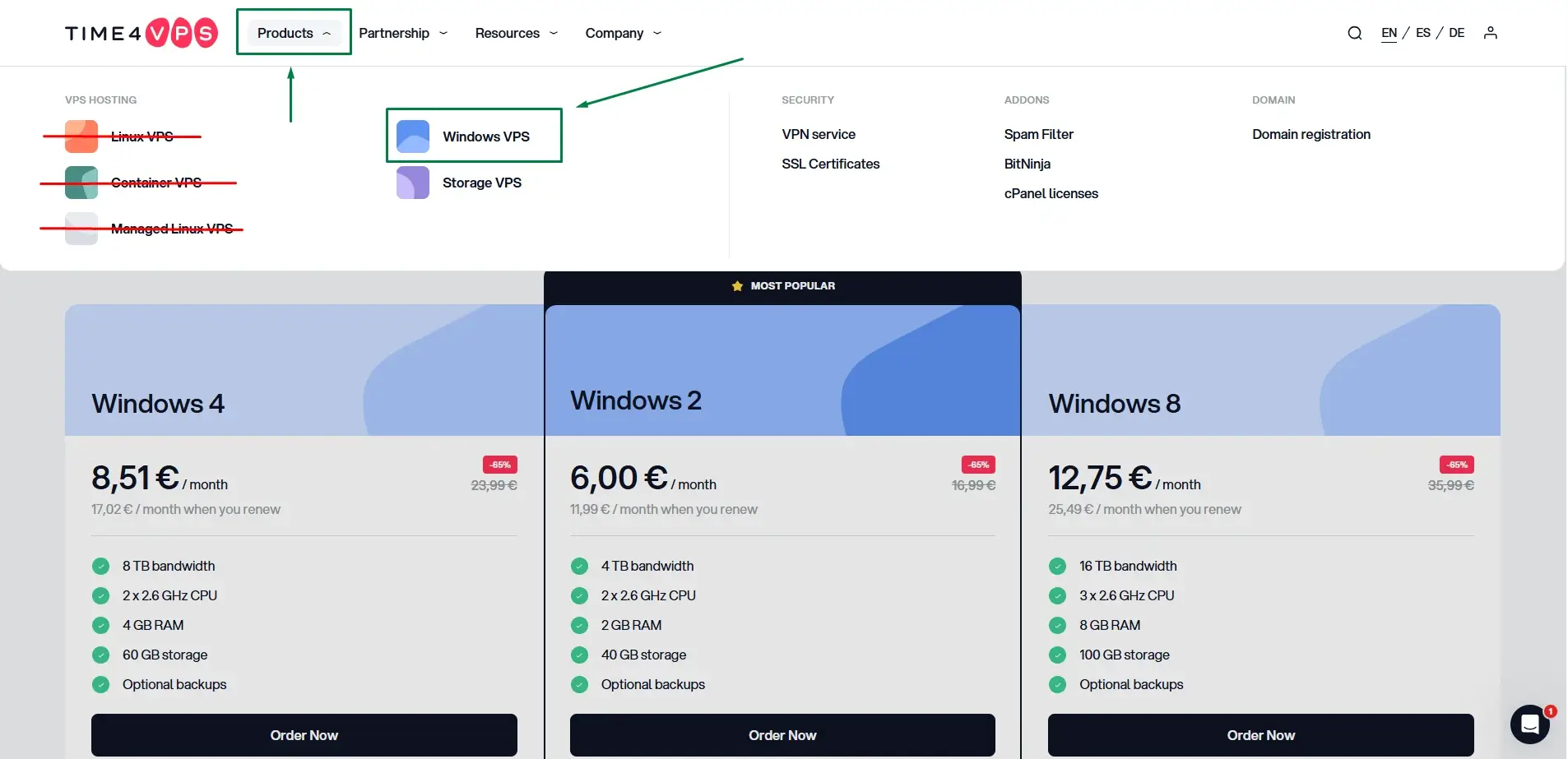
The Windows 4 plan, or any higher-tier plan, provides more breathing room for Windows updates and is preferable if you also intend to run other applications or unrelated trading software on the same server.
Activate the Windows server
- If you have not ordered the VPS yet, open the Windows VPS plans , select your preferred plan, create your account, and complete the order.
- Once the service is active, log in to the Client Area.
- Open My Services → VPS and select Manage for the new server.
- Install Windows Server 2022. No hosting control panel, such as Plesk, is required.
- Wait until the operating system installation is complete.
- Open Login Details and keep the server IP address, the Administrator username, and the generated password available.
Connect with Remote Desktop
Remote Desktop lets you view and control the VPS from your own computer as if you were sitting in front of it.
- On your Windows computer, open the Start menu and search for Remote Desktop Connection. You can also press Windows + R, enter
mstsc, and press Enter. - Enter the VPS IP address in the Computer field and select Connect.
- For the recommended VPS, use Administrator as the username and enter the password shown under Login Details. If you use your own VPS, enter its RDP username and password.
- Review and accept the server certificate warning when connecting for the first time.
The Windows VPS is ready
From this point onward, install and run MetaTrader 4 and Deusbot inside the Remote Desktop window. The VPS is a separate computer, so applications and files stored on your personal computer will not automatically be available on it.
- Keep the Remote Desktop session open.
- Continue with the MetaTrader 4 guide and complete the installation steps inside the VPS.
- Once MetaTrader 4 is ready, complete the Expert Advisor guide inside the same VPS.