Skip to content
  • Calculator
  • Pricing
  • Documentation
  • Affiliate Program
  • Contact
  • Calculator
  • Pricing
  • Documentation
  • Affiliate Program
  • Contact
Log in
FREE TRIAL

Getting Started

  • 1. CHOOSING YOUR LICENSE
  • 2. BROKER
  • 3. VPS
  • 4. METATRADER 4
  • 5. EXPERT ADVISOR

Website & Glossary

  • GLOSSARY
  • CREDIT SYSTEM
View Categories

4. METATRADER 4

3 min read

This guide explains how to install the desktop version of MetaTrader 4 on your Windows VPS or personal computer, connect it to your trading account, and open the required charts for the DAX40, CAC40, and S&P500.

The detailed installation steps are written for an FxPro account created in the broker guide and use the FxPro spot index symbols #France40, #Germany40, and #USSPX500. If you use another compatible broker, install its official MT4 terminal and use the equivalent spot index CFD symbols provided by that broker.

Before you start

This guide uses the desktop version of MetaTrader 4. The MT4 web and mobile applications do not provide the terminal features required for this setup.

Have the following ready

  • Access to your Windows VPS through Remote Desktop, or to the personal Windows computer you are using temporarily.
  • A demo or live MT4 trading account prepared in the broker guide.
  • Your MT4 account number, trading password, and exact broker server name.
  • For the FxPro procedure below, access to your FxPro Direct profile from your personal computer.
If you use another compatible broker, obtain its official MT4 desktop installer and install it on the selected Windows machine. Once the terminal is installed, continue from Log in to your MT4 account. The MT4 interface and menus are generally the same, but server and symbol names depend on the broker.

Install FxPro MetaTrader 4

Your FxPro Direct email address and password manage your broker profile. They are not the credentials used inside MT4. MetaTrader requires the separate account number, trading password, and server assigned to the selected trading account.

  1. On your personal computer, log in to FxPro Direct and locate Your trading accounts.
  2. Find the demo or live MT4 account you prepared in the previous guide and click its Trade button.
  3. The account details display the MT4 account number, trading password, and server required to connect the trading account. Keep all three details available for the next section.
  4. Click the MetaTrader 4 download button displayed with the account details and save the installer on your personal computer.
  5. If you are using a VPS, copy the installer from your personal computer and paste it onto the VPS desktop through the Remote Desktop window.
  6. On the Windows machine where MetaTrader 4 will run, open the installer and follow the installation steps.
  7. Launch the FxPro MetaTrader 4 desktop application when the installation is complete.
Install the FxPro version of MT4 so that the required FxPro trading servers are available when you connect your account.
broker trade highlight

Log in to your MT4 account

  1. In MetaTrader 4, open File and select Login to Trade Account.
  2. Enter the MT4 account number in the Login field.
  3. Enter the trading password assigned to that account.
  4. Select the exact server shown in your broker account area or account email, then confirm the login.

Confirm the connection

  • The selected account number appears in the Navigator panel or in the MT4 window title.
  • Prices in Market Watch begin updating.
  • The connection indicator in the lower-right corner does not display No connection or Invalid account.
Make sure you connect to the trading account you intend to use. Demo and live accounts have separate account numbers, passwords, and server names.

Add the required symbols to Market Watch

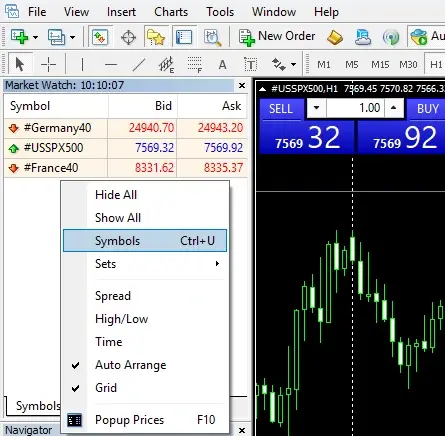
MT4 does not always display every available symbol by default. Add the broker’s spot index CFDs for the CAC40, DAX40, and S&P500 before opening their charts. FxPro uses #France40, #Germany40, and #USSPX500.

  1. Right-click inside Market Watch and select Symbols or press Ctrl+U.
  2. Locate the spot indices group. FxPro users should find #France40, #Germany40, and #USSPX500. With another broker, locate the equivalent CAC40, DAX40, and S&P500 symbols it provides.
  3. Select each symbol and click Show. Depending on the MT4 version, double-clicking the symbol can perform the same action.
  4. Close the Symbols window and confirm that all three names now appear in Market Watch.
mt4 symbols
If you cannot locate the symbols, right-click inside Market Watch and select Show All, then search the expanded list.
Use the spot index CFD symbols supplied by the broker. Do not select an index futures contract whose name contains a month or expiry code.

Open the three charts

  1. Right-click the broker’s CAC40 symbol in Market Watch and select Chart Window. On FxPro, use #France40.
  2. Repeat the same action for the DAX40 symbol. On FxPro, use #Germany40.
  3. Repeat the same action for the S&P 500 symbol. On FxPro, use #USSPX500.

Each chart opens in its own tab along the bottom of the MT4 workspace. Keep one chart open for each of the three symbols and confirm that the correct symbol name appears on every chart. These three charts must remain open while Deusbot is running.

MT4 is ready

Confirm the following

  • The desktop version of MT4 provided by your broker is installed on the selected Windows machine.
  • The intended demo or live trading account is connected and prices are updating.
  • One chart is open for each of the three required indices.

Your MetaTrader 4 workspace is now prepared. Continue with the Expert Advisor guide to install, configure, and activate Deusbot on the three charts.

Updated on July 22, 2026
Table of Contents
  • Before you start
  • Install FxPro MetaTrader 4
  • Log in to your MT4 account
  • Add the required symbols to Market Watch
  • Open the three charts
  • MT4 is ready

DEUSBOT

  • Calculator
  • Pricing
  • Documentation
  • Affiliate
  • Contact
  • Terms
  • Calculator
  • Pricing
  • Documentation
  • Affiliate
  • Contact
  • Terms

WARNING:

Deusbot Trading provides software tools and general information only. It is not a broker, investment firm, or financial adviser. CFDs are complex instruments and carry a high risk of losing money rapidly due to leverage. Most retail investor accounts lose money when trading CFDs. You should consider whether you understand how CFDs work and whether you can afford to take the risk of losing your money. Past performance is not indicative of future results.

➤
Guided setup

Need help finding the right setup path?

Answer a few questions and we will guide you to the documentation sections that match your situation.

Guided setup MetaTrader 4 guide

Guided setup available

Open the assistant at any time to jump directly to the sections you need.