
This guide explains how to install the Deusbot Expert Advisor in MetaTrader 4, configure it for the three supported indices and activate it with your Deusbot license.
Before continuing, MetaTrader 4 should already be connected to the intended demo or live trading account, with a separate chart open for each of your broker’s CAC40, DAX40 and S&P 500 index CFDs.
Before you start
Deusbot runs inside the desktop version of MetaTrader 4. The MT4 web and mobile applications cannot run the Expert Advisor.
Complete this guide on the Windows machine where MetaTrader 4 will run. If you prepared a VPS, complete these steps inside its Remote Desktop session. If you are testing temporarily on your personal computer, Deusbot can operate only while the computer is powered on, connected to the internet and MetaTrader 4 remains open.
Have the following ready
- MetaTrader 4 connected to the intended trading account, with the three required charts open.
- Access to your Deusbot membership account with an active trial or paid license.
- The CAC, DAX and SPX base position sizes you intend to use, as shown in the Deusbot calculator.
Install the Deusbot Expert Advisor
- Open your Deusbot membership account and go to the License tab.
- Download the latest Deusbot Expert Advisor .ex4 file.
- If the file was downloaded on your personal computer while MT4 runs on a VPS, copy the .ex4 file to the VPS through the Remote Desktop window.
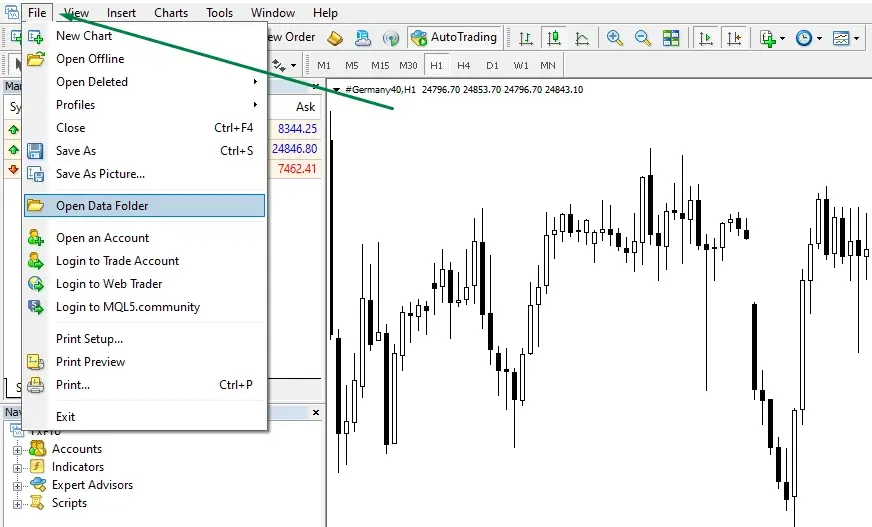
- In MT4, open File and select Open Data Folder.
- Open the MQL4 folder, then the Experts folder.
- Place the Deusbot .ex4 file inside the Experts folder.
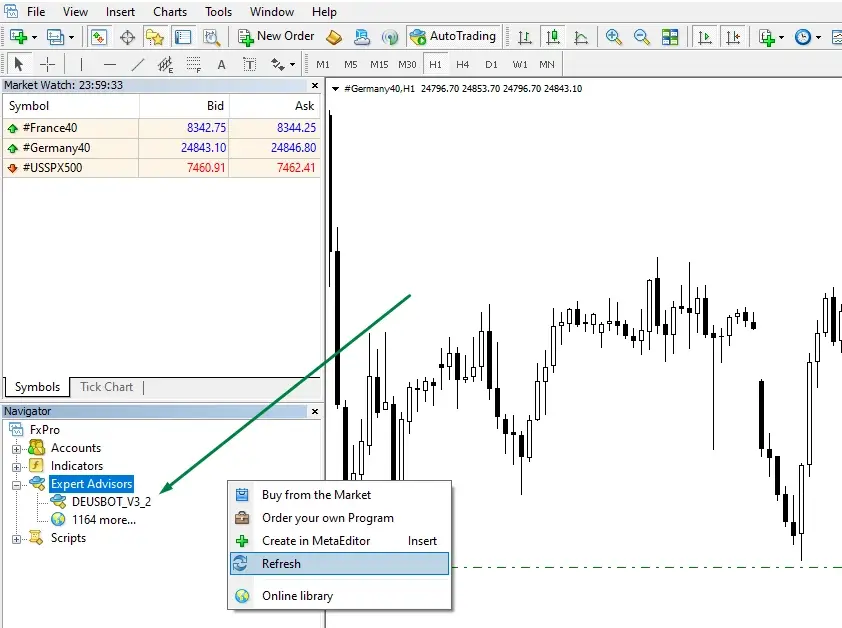
- Restart MT4. Alternatively, open the Navigator with Ctrl+N, right-click Expert Advisors and select Refresh.
- Confirm that Deusbot is listed under Navigator → Expert Advisors.
Allow the Deusbot API
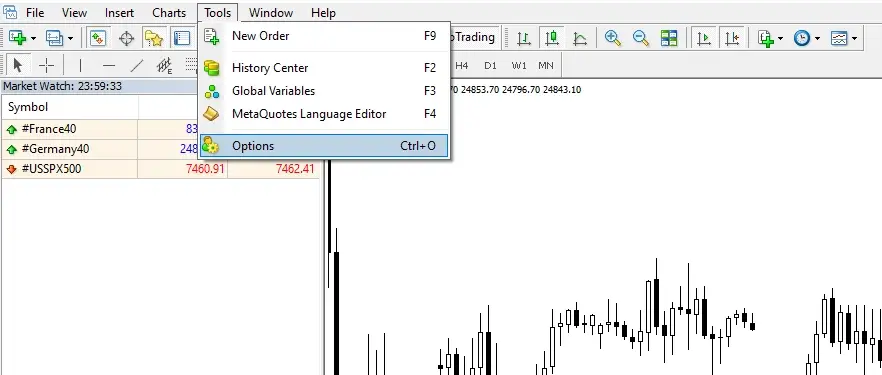
- Open Tools → Options, or press Ctrl+O.
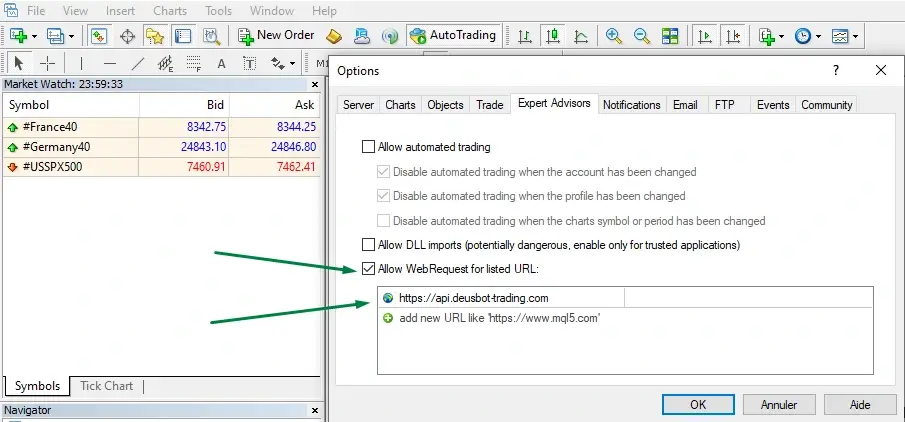
- Open the Expert Advisors tab.
- If Allow automated trading is enabled, disable it for now.
- Enable Allow WebRequest for listed URL.
-
Add the following address exactly as written:
https://api.deusbot-trading.com - Click OK to save the settings.
Attach and configure Deusbot
Configure Deusbot on the three charts prepared in MT4. Repeat the steps below for the CAC40, DAX40 and S&P 500 charts. Symbol names may vary depending on your broker.
- Select one of the three chart tabs.
- In Navigator → Expert Advisors, double-click Deusbot or drag it onto the selected chart.
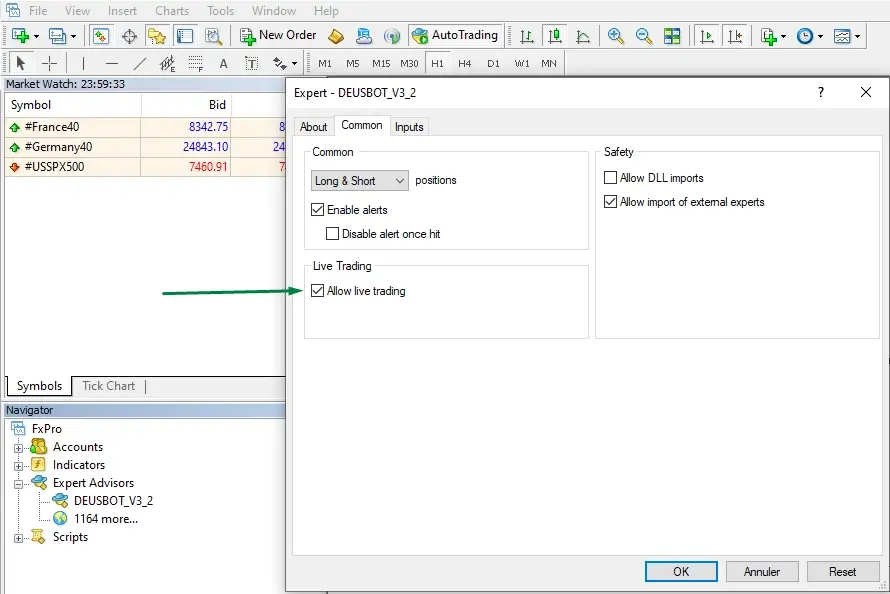
- In the Common tab, enable Allow live trading.
- Open the Inputs tab.
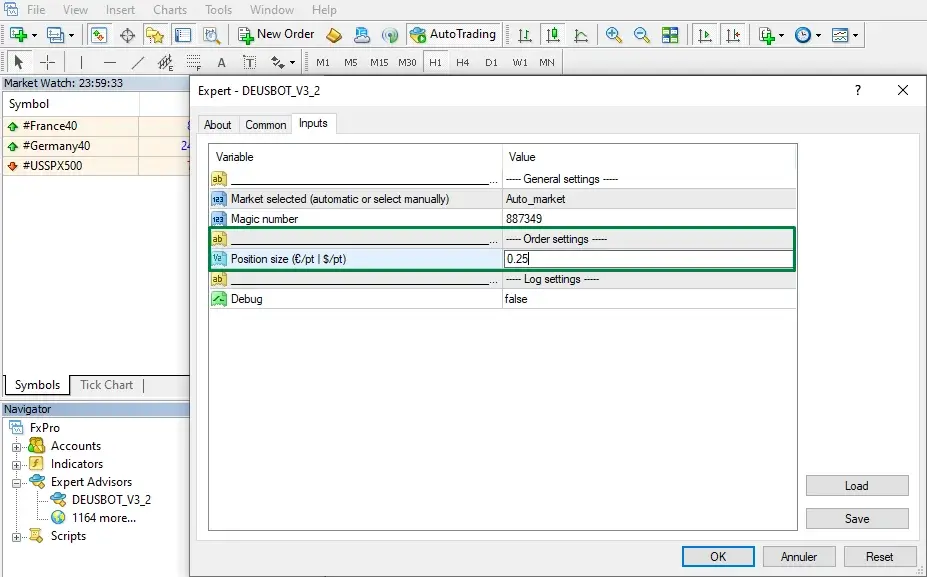
- Leave Market selected set to Auto_market. Deusbot normally detects the correct index from the chart symbol. If detection does not work with your broker, select Market_CAC, Market_DAX or Market_SPX manually.
- Change only Position size (€/pt | $/pt) and enter the base position size for that index shown in the setup panel of the Deusbot calculator.
- Leave all other inputs at their default values and click OK.
- Repeat these steps on the other two charts, using the corresponding base position size for each index.
Before continuing, confirm that the Matching License shown by the calculator corresponds to your active license. Base position sizes above the maximum values available with your current tier require a higher tier.
Activate Deusbot
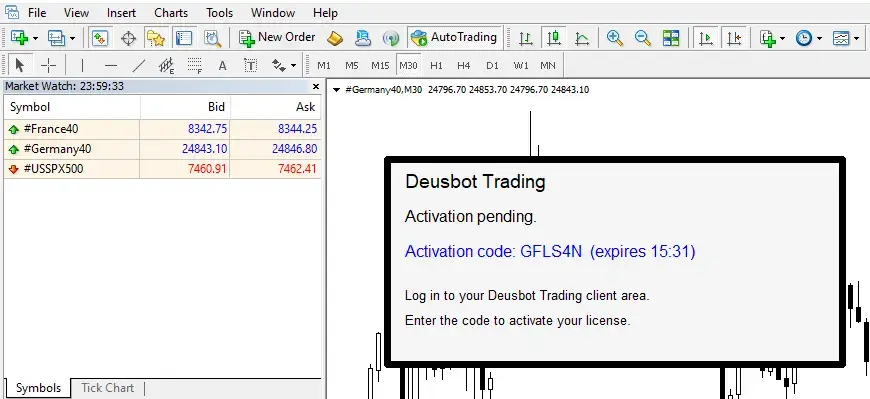
If the Expert Advisor displays Activation pending and provides an activation code, complete the following steps:
- Copy or note the complete activation code displayed by the EA.
- Open your Deusbot membership account and select the License tab.
- If the license is currently linked to another MT4 installation, click Move license to display the activation field.
- Enter the code in the ACTIVATION CODE field and click Save.
- Return to MT4 and allow a short moment for the EA to update its status.
Enable AutoTrading
Enable automated trading only after the complete setup has been reviewed.
- Confirm that MT4 is connected to the intended demo or live trading account.
- Check that Deusbot is attached to the CAC40, DAX40 and S&P 500 charts.
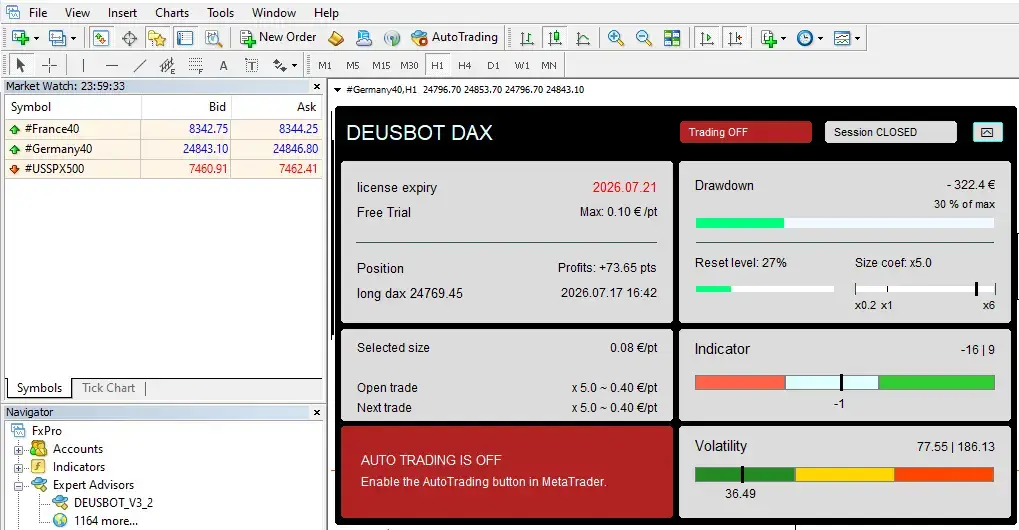
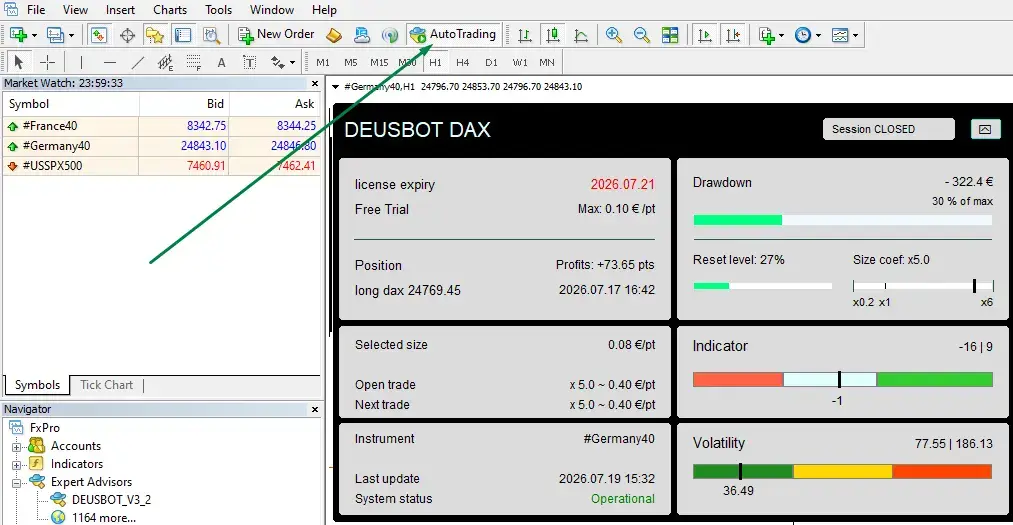
- Confirm that the base position size configured on each chart (shown as Selected size in the EA dashboard) matches the corresponding value selected in the Deusbot calculator.
- Confirm that the Deusbot interface no longer displays Activation pending.
- Confirm that Allow live trading is enabled in the EA settings on all three charts.
- Click the AutoTrading button in the main MT4 toolbar to enable automated trading globally.
- Confirm that none of the three Deusbot interfaces displays a red warning message.
Final checks
MT4 setup
- The correct trading account and server are connected.
- The three required spot index charts remain open.
- Deusbot is attached to each chart.
- AutoTrading is enabled.
Deusbot setup
- Each chart uses the correct base position size.
- The Deusbot API URL is allowed.
- This MT4 installation is linked to the active license.
- The EA no longer reports that activation is pending.
Setup complete
MetaTrader 4 is now connected to your trading account, with Deusbot active on all three index charts.
If you are testing temporarily on your personal computer, keep the computer powered on and connected to the internet, with MT4 and the three charts open.