
To use Deusbot, you need a MetaTrader 4 trading account with a broker. If you already have a live MT4 account, start by checking whether your current broker is suitable .
If you do not have a suitable broker account, open our broker comparison and choose the broker that best fits your setup. Once you have chosen one, return to this guide and continue below.
You can begin with a demo account while you learn and test the setup, or use a live account once you are ready to trade with real funds. Your funds remain with your broker at all times. Deusbot does not receive, hold, or manage client funds.
Already have your own broker?
You do not need to change broker if your current account is compatible with Deusbot. Check the requirements below before continuing.
Your existing broker account is suitable when
- It provides MetaTrader 4 accounts and allows Expert Advisors.
- It offers CFDs for the S&P500, DAX40 and CAC40 indices. Symbol names can vary between brokers, such as US500, GER40 or FRA40.
- Its minimum values per point result in a level of risk you are comfortable with.
How to find the minimum value per point
The easiest option is to ask your broker’s support team: What is the minimum value per point available for S&P500, DAX40 and CAC40 on my live MT4 account?
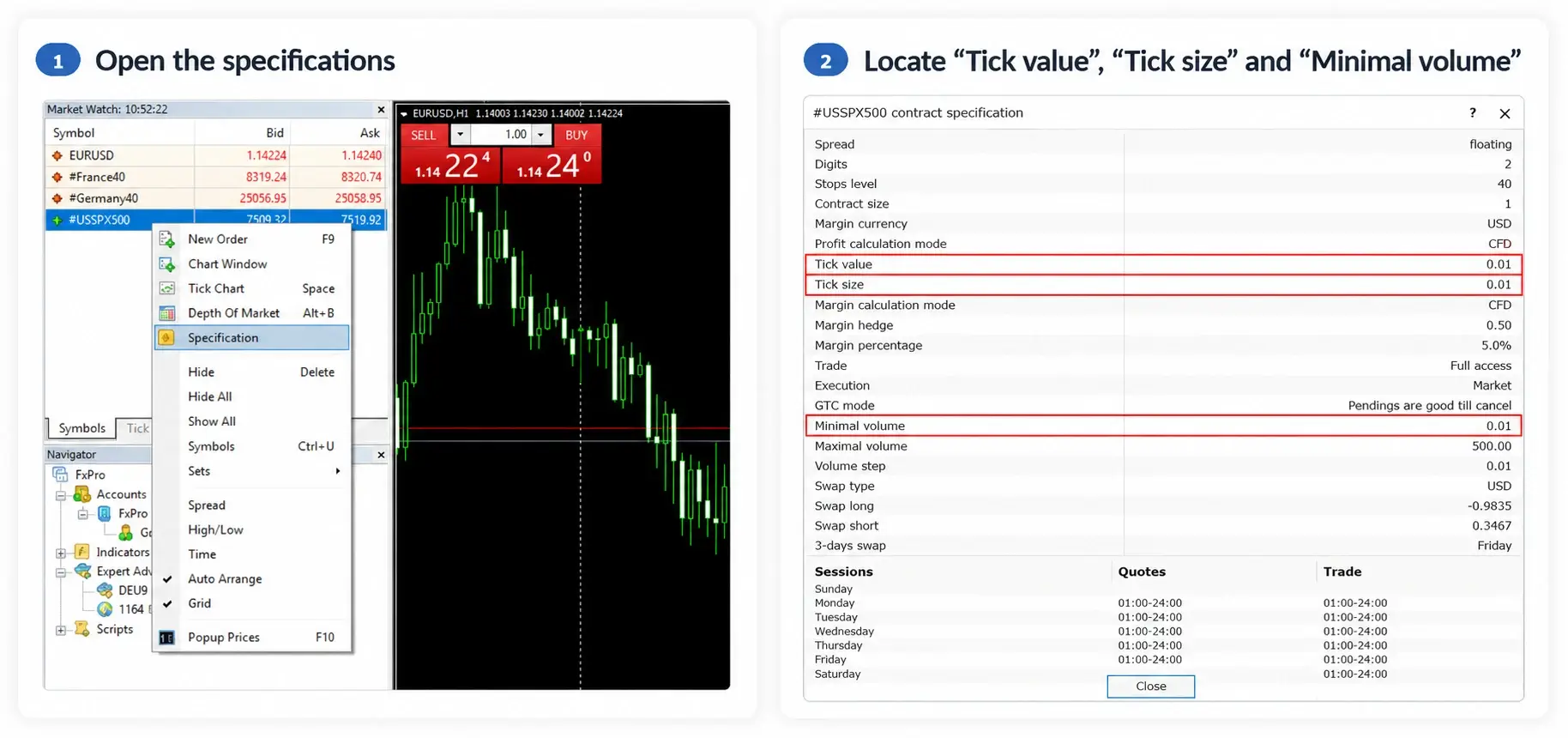
You can also check it directly in MT4.
-
Press Ctrl+M to open Market Watch, right-click the broker’s
S&P500, DAX40 or CAC40 symbol and select Specification.
If the symbol is not visible, select Symbols, search for it and double-click it to add it to Market Watch. -
Calculate
Minimum value per point = Minimal volume × Tick value ÷ Tick size.
In some MT4 installations, Tick value is labelled Tick price. - Repeat these steps for all three indices.
Check the broker sizing in the Deusbot calculator
- Open the Deusbot calculator.
- Enter the balance you plan to allocate and select your preferred exposure preset.
- Compare the calculated CAC, DAX and SPX values per point with the minimum values allowed by your broker.
- If the broker requires a higher minimum for one index, enter that minimum manually. The calculator will switch to CUSTOM SIZING and display the resulting risk exposure.
- Check whether the new exposure remains acceptable. In the example below, increasing only the DAX size from €0.04 to €0.10 per point raises its risk exposure from 19.8% to 49.5%.

Keep your MT4 account details available and continue with this guide.
Your broker is not suitable?
Open our broker comparison, choose a suitable broker, then return to this guide.
Need a broker?
If you do not already have a suitable broker, we have selected several brokers that meet the main requirements for using Deusbot.
Compare their account specifications and choose the option that best fits your account size and position sizing.
Compare our recommended brokers
Partner conditions
We have negotiated specific trading conditions with some of our broker partners, including more competitive spreads and overnight financing rates on the indices used by Deusbot.
To benefit from these conditions, make sure you create your broker account using the partner link provided on our broker comparison page.
Deusbot Trading may receive compensation when you open or use a broker account through one of these partner links, at no additional cost to you.
Keep this guide open. Once your broker account is created, return here and continue with the next step.
Create and verify your broker account
Once you have chosen a broker, create your main broker profile and complete any verification steps required before opening a live trading account.
- Create your broker account using your personal details, email address and country of residence.
- Complete any information requested about your financial situation, trading experience and knowledge of CFDs.
- Verify your identity by following the instructions provided by your broker.
- Upload any identification or proof-of-address documents requested.
- Wait until your broker confirms that your account is ready for live trading.
Already have a verified account with a compatible broker? You can skip this section and continue below.
OPTIONAL — Create an MT4 demo account
A demo account uses virtual funds and lets you prepare MetaTrader 4, check your broker setup and become familiar with Deusbot before using real money.
- Log in to your broker account and look for the option to create a new trading account.
- Choose a Demo account.
- Select MetaTrader 4 as the trading platform.
- Choose the available account settings and create the account.
- Keep the MT4 account number, password and server details provided by your broker.
Creating a demo account is optional. If you prefer to prepare your live account directly, continue to the next section.
Create your live MT4 account
You now need a live MetaTrader 4 trading account that will be used with Deusbot.
- Log in to your broker account and look for the option to create a new live trading account.
- Select MetaTrader 4 as the trading platform.
- Choose the available account settings and create the account.
- Find the MT4 account number provided by your broker.
- Retrieve the MT4 trading password and server name. These may be displayed in your broker account or sent to you by email.
- Keep the following details available for the MetaTrader 4 setup: account number, trading password and server.
Your MT4 credentials may be different from the email address and password you use to log in to your broker’s website.
Fund your live MT4 account
Before depositing, open the Deusbot calculator and review the balance, position sizes, risk exposure and historical results for the setup you intend to use.
- Decide how much capital you want to allocate to the Deusbot setup.
- Log in to your broker account and select your live MT4 trading account.
- Choose one of the deposit methods offered by your broker.
- Enter the amount you want to allocate and follow the broker’s payment instructions.
- Confirm that the funds are visible in your live MT4 account before continuing.
Once your live MT4 account is created and the funds are visible, your broker setup is complete.
Keep your MT4 account number, password and server available. You will need them when setting up MetaTrader 4.
Continue to the next guide to choose whether Deusbot will run on a Windows VPS or temporarily on your personal Windows computer.